Preamble
Today we will consider how to run Python code in a Microsoft SQL Server database, you will learn what you need to do to enable this feature, and how to run Python code using a regular T-SQL instruction.
Prerequisites and SQL Server preparation
In order to execute the Python code in an SQL Server database, certain conditions must be met.
Microsoft SQL Server is at least version 2017
Support for Python language appeared only in Microsoft SQL Server 2017, so it is possible to execute code on Python only starting from 2017 version of SQL Server.
The Machine learning services must be installed
In Microsoft SQL Server 2016 for the first time it is possible to execute instructions directly in the database in other languages, in particular, the R language.
In 2017, this component was named “Machine Training Services”, which, as noted, added support for the Python language.
Thus, to run the code Python, in a database SQL Server must be installed “Machine Training Services”, which adds to our ability.
If the component “Machine Training Services” is not installed, then run the Python code in a Microsoft SQL Server database will not work.
What is Machine Training Services in SQL Server
Can execute Python and R programs with relational data using Machine Training Services, a SQL Server component.
The specific functionality of SQL Server and the language T-SQL are substantially expanded since instructions are executed in the database rather than sending the data elsewhere, such as across the network to another server.
Installing the Machine Training Services component
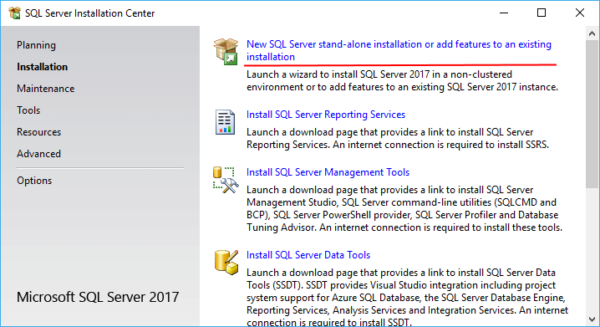
If you do not have “Machine Training Services” installed, you can reinstall them. To do this, run “SQL Server Installation Center“, on the “Installation” tab select “New installation of an isolated instance of SQL Server or adding components to an existing installation“.
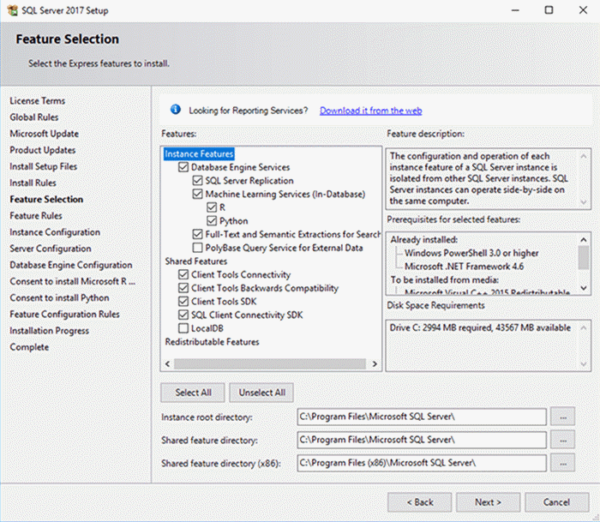
Then on the “Component Selection” tab in the “DBMS Kernel Services” section mark the “Machine Training Services (in the database)” component as well as which language you want to use, in our case Python.
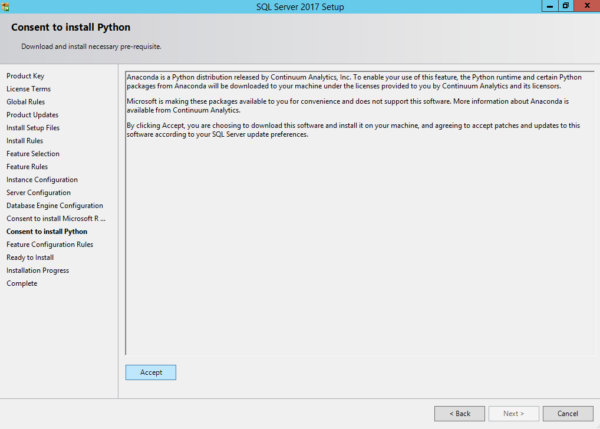
Then click “Accept” on the “Accept installation” page.
After installation is complete, it is better to restart the computer.
Note! This installation option requires Internet access. If there is no internet access, you can use a standalone installer.
On SQL Server, you must allow the use of external scripts
By default, the execution of external scripts using the Python language in Microsoft SQL Server is prohibited, so you must first enable this feature on SQL Server.
How to allow using external scripts in SQL Server
To allow the use of external scripts in the Python language, you must enable the system parameter “external scripts enabled” in SQL Server, this is done using the system procedure sp_configure.
sp_configure 'external scripts enabled', 1;
RECONFIGURE WITH OVERRIDE
After that you should restart the SQL server service.
To check the value of the parameter, you can execute the following instruction.
EXEC sp_configure 'external scripts enabled'
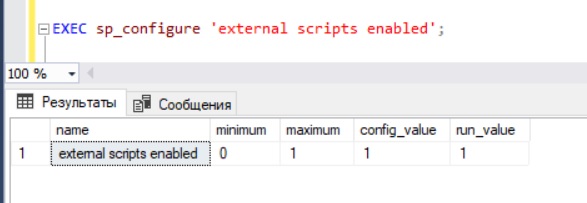
If the run_value parameter value is 1, then the use of external scripts in SQL Server is allowed.
Executing Python code in Microsoft SQL Server in T-SQL
Python code is executed, as well as code of other languages, such as R, in Microsoft SQL Server using the system stored procedure sp_execute_external_script.
sp_execute_external_script is a system stored procedure that executes the script in supported languages (R, Python), passed as an input parameter.
Syntax sp_execute_external_script
sp_execute_external_script
@language = N'language',
@script = N'script'
[ , @input_data_1 = N'input_data_1' ]
[ , @input_data_1_name = N'input_data_1_name' ].
[ , @output_data_1_name = N'output_data_1_name' ].
[ , @parallel = 0 | 1 ]
[ , @params = N'@parameter_name data_type [ OUT | OUTPUT ] [ , ...n ]' ]
[ , @parameter1 = 'value1' [ OUT | OUTPUT ] [ , ...n ] ]
[ WITH RESULT SETS ( <result_sets_definition> )] ;
Where,
- @language – the parameter in which the script language is specified;
- @script – script text;
- @input_data_1 – the parameter specifies the input data used by external script in the form of T-SQL query;
- @input_data_1_name – the parameter specifies the name of the variable used to represent the query defined in @input_data_1;
- @output_data_1_name – the parameter specifies the variable name in the external script that contains data returned to SQL Server after the stored procedure call;
- @parallel – the parameter includes parallel execution of R scripts (value 1). Default value for this parameter is 0 (without parallelism);
- @params – declaration of input parameters used in the external script;
- @parameter1 – list of values of input parameters, used in the external script;
- WITH RESULT SETS – by default the resulting set returned by the sp_execute_external_script procedure is displayed with unnamed columns. To name the columns of the resulting set, use the WITH RESULT SETS sentence for the EXECUTE command.
Examples of Python code execution in SQL Server
Let’s run some examples.
Example 1 – Output the result into a standard data output
In this case, we simply perform some calculations and get the result into a standard data output.
EXECUTE sp_execute_external_script
@language = N'Python',
@script = N'
a = 1
b = 2
c = a+b
print ("Example instruction on Python")
print("Result =", c)';
As you can see, in the language parameter we specified that we would run the code on Python, then in the script parameter we wrote the code itself, where we create several variables, add their values and generate messages with the print command.
The result is that we get these messages in the standard output of the messages, for example, as if we had executed the eponymous print command in T-SQL.
Example 2 – Output the result in tabular form
Let’s make our Python code a bit more complicated and form data on it in such a way as to get it in our usual form, i.e. tabular.
For this we will use the Pandas library and the Series object, which is a one-dimensional array of indexed data.
We will form the resulting dataset using the WITH RESULT SETS instruction, which will help us specify the column name and its data type.
EXECUTE sp_execute_external_script @language = N'Python',
@script = N'
import pandas as pd
TestVar = pandas.Series([100, 200, 300]);
OutputDataSet = pd.DataFrame(TestVar);
'
@input_data_1 = N''.
WITH RESULT SETS((Column1 INT NOT NULL));
Example 3 – Transferring data to Python code
Here we will consider an example of transmitting data, e.g. tabular data, received with a simple SELECT query to a procedure.
For this purpose, we will first form the text of the query and save it in a variable, for convenience and clarity of the code.
Then we use the parameter @input_data_1 to pass this query text into the procedure using a variable (in principle, we can specify the query text itself).
Using parameter @input_data_1_name we speak as the result set of query data which we specified in parameter @input_data_1 will be named in Python code, i.e. here we specify the name of the variable which will contain our incoming data. For example, I named this variable Input_Data, and in code we can work with this variable to use the incoming tabular data.
In this case we just pass the data and we do not do anything with it, we just return the data back, for this OutputDataSet parameter we assigned the data from our variable.
We have formed the final dataset, i.e. we have specified column names and data types, also using the WITH RESULT SETS instruction.
SELECT ProductId, ProductName, Price
FROM Goods;
GO
DECLARE @Input_Query NVARCHAR(MAX) = N'SELECT ProductId,
CAST(ProductName AS NVARCHAR(100)),
CAST(Price AS FLOAT)
FROM Goods';
EXEC sp_execute_external_script @language = N'Python',
@script = N'
# Here we can process the incoming data
#...
OutputDataSet = Input_Data
'
, @input_data_1 = @Input_Query
@input_data_1_name = N'Input_Data'.
WITH RESULT SETS ((ProductId INT, ProductName VARCHAR(100), Price MONEY);
Here we are with you and have seen the basic principles of working with Python in Microsoft SQL Server, we learned how to enable the ability to work with Python, how to run code, how to use the incoming data and how to get the result in tabular form.
About Enteros
Enteros offers a patented database performance management SaaS platform. It proactively identifies root causes of complex business-impacting database scalability and performance issues across a growing number of clouds, RDBMS, NoSQL, and machine learning database platforms.
The views expressed on this blog are those of the author and do not necessarily reflect the opinions of Enteros Inc. This blog may contain links to the content of third-party sites. By providing such links, Enteros Inc. does not adopt, guarantee, approve, or endorse the information, views, or products available on such sites.
Are you interested in writing for Enteros’ Blog? Please send us a pitch!
RELATED POSTS
How to Optimize Retail Sector Growth with Enteros Cloud FinOps, RevOps Efficiency, Cost Attribution, Cost Estimation, and AI SQL
- 9 April 2026
- Database Performance Management
Introduction The retail sector is undergoing a rapid transformation driven by eCommerce expansion, omnichannel experiences, AI-powered personalization, and data-driven decision-making. Retailers today operate across multiple platforms—online stores, mobile apps, physical outlets, and global marketplaces—creating highly complex and data-intensive environments. As retail businesses scale, they face a critical challenge:how to drive growth while controlling costs, optimizing … Continue reading “How to Optimize Retail Sector Growth with Enteros Cloud FinOps, RevOps Efficiency, Cost Attribution, Cost Estimation, and AI SQL”
How to Optimize Healthcare Growth Management with Enteros Database Performance and AIOps Platform
Introduction The healthcare sector is rapidly evolving with the adoption of digital technologies such as electronic health records (EHRs), telemedicine, AI-driven diagnostics, and real-time patient monitoring. These innovations are transforming how healthcare providers deliver services, improve patient outcomes, and manage operations. However, as healthcare organizations scale, they face a critical challenge:how to manage growth efficiently … Continue reading “How to Optimize Healthcare Growth Management with Enteros Database Performance and AIOps Platform”
How to Drive eCommerce Revenue Growth with Enteros Growth Management, RevOps Efficiency, and Cloud FinOps
- 8 April 2026
- Database Performance Management
Introduction The eCommerce sector has witnessed explosive growth over the past decade, fueled by digital transformation, mobile shopping, AI-driven personalization, and global online marketplaces. From startups to enterprise retailers, businesses are scaling rapidly to meet rising customer expectations for speed, convenience, and seamless experiences. However, this rapid growth introduces a critical challenge:how to increase revenue … Continue reading “How to Drive eCommerce Revenue Growth with Enteros Growth Management, RevOps Efficiency, and Cloud FinOps”
How to Drive Healthcare Sector Performance Growth with Enteros Database Management and AI SQL Optimization
Introduction The healthcare sector is undergoing a significant digital transformation driven by electronic health records (EHRs), telemedicine, AI-powered diagnostics, and real-time patient monitoring systems. Healthcare organizations are increasingly relying on data to deliver better patient outcomes, improve operational efficiency, and ensure regulatory compliance. However, with the exponential growth of healthcare data comes a major challenge:how … Continue reading “How to Drive Healthcare Sector Performance Growth with Enteros Database Management and AI SQL Optimization”